
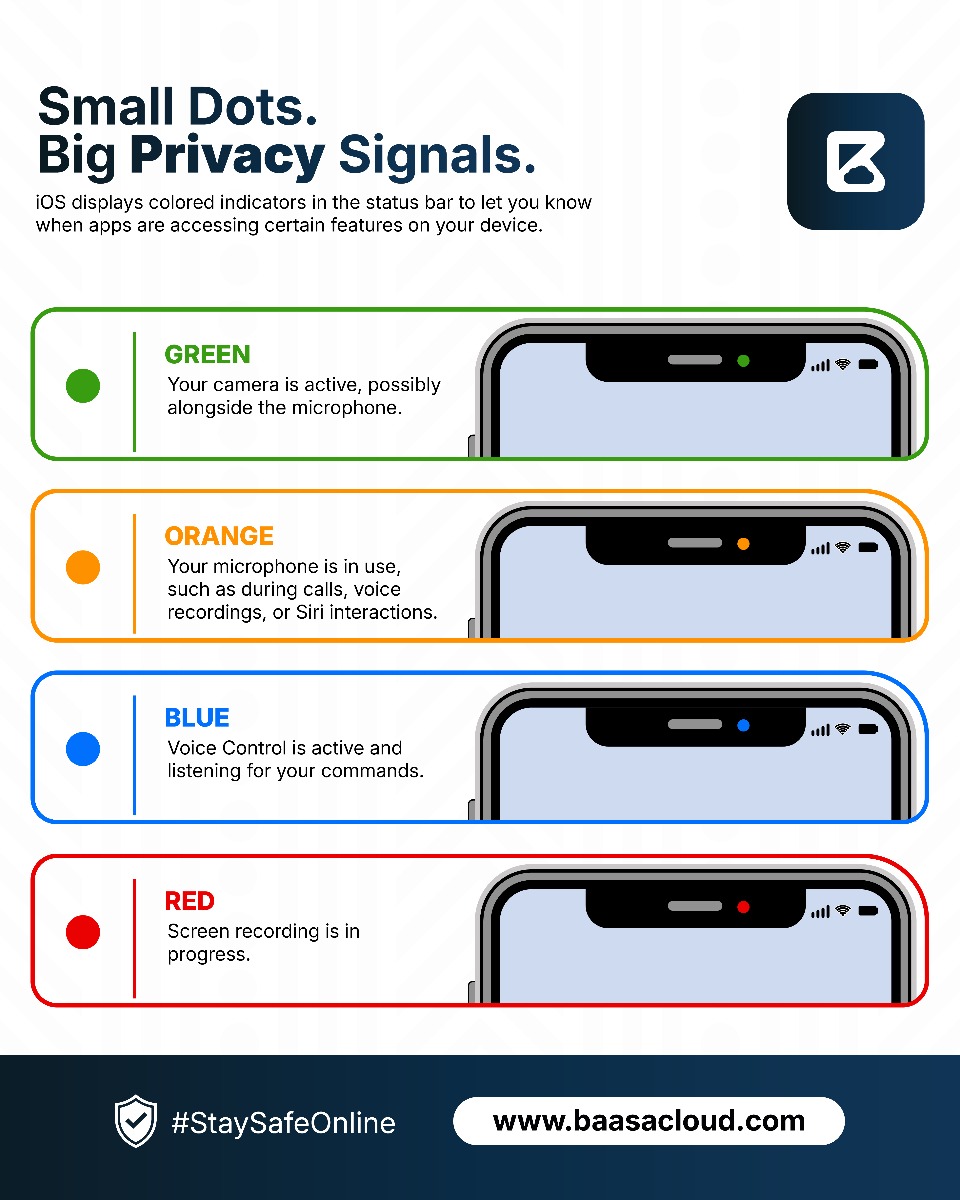
Have you noticed a small green or orange dot at the top of your iPhone screen? These tiny indicators can tell you when an app is accessing your camera or microphone. They are part of Apple's privacy features, designed to help you understand how apps use certain functions on your device.
In this guide, we explain what the colored dots on your iPhone mean, how to identify apps accessing your camera or microphone, and the practical steps you can take to protect your personal information.
What do the colored dots on an iPhone mean?
The colored indicators on an iPhone provide information about certain activities taking place on your device. The green and orange dots specifically indicate camera and microphone access, while other status indicators can represent different activities.
Here is what you need to know about the most common indicators.
Green dot: Your camera is in use
A green dot appears when an app is using your iPhone's camera, either on its own or alongside the microphone. You may notice it when taking photos, recording videos, joining video calls or using applications that require camera access.
The indicator does not automatically mean someone is watching you. Many legitimate apps need camera access to perform their normal functions.
What should you do?
- Open the Control Centre to check which app is using or has recently used your camera.
- Go to Settings > Privacy & Security > Camera to review which apps have permission to access your camera.
- Disable camera access for apps that do not need it.
Orange dot: Your microphone is in use
An orange dot means an app is accessing your iPhone's microphone. This can happen during phone calls, voice recordings, voice messages, video calls and other activities that require audio input.
If the indicator appears when you are not expecting to use your microphone, it is worth checking which app is responsible.
What should you do?
- Open the Control Centre to identify the app currently using or recently using your microphone.
- Go to Settings > Privacy & Security > Microphone to review app permissions.
- Turn off microphone access for applications that do not need it.
What about blue and red indicators?
Blue and red indicators can also appear on an iPhone, but their meanings depend on the activity, device and iOS version. They should not automatically be interpreted as camera or microphone privacy alerts.
Blue indicators
A blue status indicator can appear when certain activities are taking place, including Personal Hotspot, screen mirroring or an app actively using your location. Check the status message or Control Centre to understand what is happening.
Red indicators
A red status element or recording symbol may indicate that screen recording is active, depending on your iPhone model and iOS version. Screen recording can capture information displayed on your device, so check that it is only active when you intend to record.
If you do not recognise the activity, open the Control Centre and check whether screen recording is running.
How to protect your privacy on an iPhone
Recognising privacy indicators is a good starting point, but there are other steps you can take to protect your personal information.
Review app permissions regularly
Go to Settings > Privacy & Security and review which applications can access your camera, microphone, location and other sensitive features. Only grant permissions that are necessary for an app to work properly.
Remove apps you no longer use
Unused applications can retain permissions you previously granted. Delete apps you no longer need and install new applications from trusted sources.
Keep your iPhone updated
Apple regularly releases iOS updates that include security improvements and bug fixes. Go to Settings > General > Software Update to check for available updates.
Investigate unexpected activity
If a privacy indicator appears unexpectedly, check the Control Centre to identify the app responsible. Review its permissions and investigate unfamiliar applications. An indicator alone does not mean your iPhone has been compromised, but unexpected access deserves attention.
Frequently asked questions
Does the green dot mean someone is watching me?
No. The green dot indicates that an app is using your camera, either independently or alongside the microphone. It does not automatically mean someone is watching you remotely. Check which app is active if you are concerned.
Can I turn off the green and orange dots?
No. These are built-in iOS privacy indicators and cannot be disabled through normal settings. They are designed to help you recognise when your camera or microphone is being accessed.
How can I find out which app is using my microphone?
Open the Control Centre while the orange indicator is visible. Your iPhone can show which app is currently using or has recently used your microphone. You can then review that app's permissions in Settings.
Should I be worried when a privacy indicator appears?
Not necessarily. Many legitimate apps use the camera and microphone for calls, recordings and other features. The important thing is to recognise unexpected activity and ensure apps only have the permissions they need.
Conclusion
The colored indicators on your iPhone provide useful information about how apps access certain features. Green means your camera is in use, while orange means your microphone is active. Other indicators can represent different activities depending on your device and iOS version.
By reviewing app permissions, keeping your software updated and paying attention to unexpected activity, you can take practical steps to protect your digital privacy.
At The Quick Consult, we believe informed decisions start with access to useful information and the right expertise. Explore practical guides and connect with professionals who can help you make informed decisions in technology, business and everyday life.